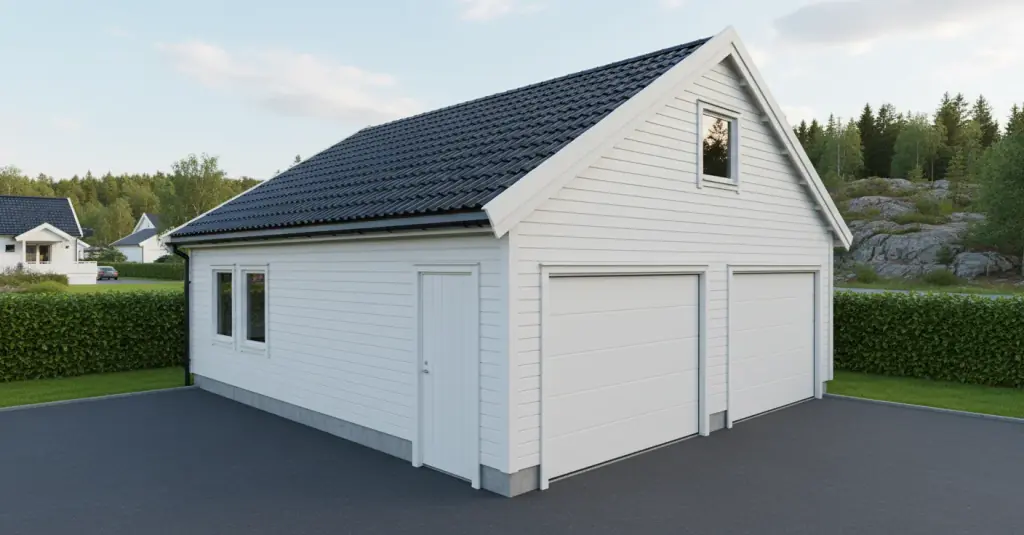
How to create free AI renders from your Autostrek model
Autostrek includes a built-in render feature, but each render has a small cost. That is because the rendering is handled by Google in the background. It is a very convenient option and the cost is usually quite low, but there is also a simple way to create renders for free.
You can use an external AI image tool instead. Many AI tools offer free trials, free daily image generations, or limited free credits. One example is Google Gemini, but you can also test other tools and see which one gives the best result for your type of project.
Step by step
1. Open/generate your model in Autostrek
Set up the view you want to render. Try to choose a clean angle that shows the building clearly.
2. Turn off visual helpers
Before taking a screenshot, hide elements that should not appear in the final image, such as:
Grid
Axes
Other helper lines or overlays
This gives the AI a much cleaner starting point.
3. Take a screenshot
Capture the model directly from the viewport. Try to get a sharp and well-framed image.
4. Open your preferred AI image tool
Use any image AI that allows image input. Many tools let you upload or paste an image directly into the chat.
5. Paste or upload the screenshot
Insert the screenshot into the AI tool so it can use your model as the reference.
6. Add a clear prompt
Tell the AI exactly what you want. The most important part is to keep the design unchanged.
A good prompt could be:
Make this building photo realistic. Keep the exact geometry, proportions, roof shape, windows, doors, and structure unchanged. Do not redesign or alter the model. Only improve materials, lighting, shadows, background, and realism.
7. Adjust the style if needed
You can also add details such as:
modern daylight scene
realistic wood materials
soft natural shadows
clean garden surroundings
realistic sky and environment
8. Generate the image
Let the AI create the render. If the result changes the building too much, regenerate with a stricter prompt.
9. Refine the prompt if necessary
If the AI starts changing the model, add stronger instructions like:
Do not change the architecture. Do not add floors, windows, extensions, or new roof shapes. Preserve the exact design.
Tips for better results
-Use a clean screenshot with as little clutter as possible
-Choose a good camera angle before capturing the image
-Be very specific in the prompt
-Remind the AI to keep the geometry unchanged
-Test a few different AI tools, since some are better than others for architectural renders
This method can be a great free alternative if you want quick visualizations without using Autostrek render credits.